x86 Licensing
Licensing Basics
For x86 systems (PC-based installations), a license key must be obtained. Each system has a unique identifier called the Software ID, which is used for licensing purposes.
The license key is provided as a block of characters. It can be copied from your MikroTik account or from the email you received after purchase, and then pasted into the router. You can paste the key directly into the terminal or use the Paste Key option in the WinBox License menu. A reboot is required for the license to take effect.
x86 Software ID is bound to the storage device (e.g., NAND, SSD, HDD, NVMe) MBR.
Before purchasing a license, verify that the Software ID remains unchanged after a reboot.
The Software ID may change if the underlying storage or configuration is unstable. This can occur, for example, when:
- using defective or failing storage devices (SSD, HDD, NVMe, etc.).
- RAID configurations are incorrectly set up or not persistent.
- different storage controllers or adapters are used between boots.
System Requirements
- Package version: RouterOS v6.34 or newer.
- Host CPU: x86-64 architecture (64-bit).
- RAM: 512 MB or more.
- Disk: 128 MB or more.
- RouterOS v6: Maximum supported hard drive size is 16 GB.
- RouterOS v7: Maximum RAM and disk space are limited by Linux kernel 5.6.3 and depend on the specific hardware.
The minimum required RAM depends on the interface count and CPU count. Use the following formulas to calculate an approximate value:
- RouterOS v6:
RAM = 128 + [ 8 × (CPU_COUNT) × (INTERFACE_COUNT - 1) ] - RouterOS v7:
RAM = 512 + [ 8 × (CPU_COUNT) × (INTERFACE_COUNT - 1) ]
RouterOS License Key Levels
Licensing information can be retrieved from the CLI system console:
[admin@MikroTik] > /system/license/print
    software-id: "ABCD-1234"
         nlevel: 6
       features:
[admin@MikroTik] >
It can also be viewed from the equivalent WinBox or WebFig menu.
After installation of the x86 system, RouterOS runs in Trial mode with no limitations. You have 24 hours to register for a Level 1 (Free Demo) license, or purchase a Level 4, 5, or 6 license and apply a valid key.
[admin@MikroTik] /system/license/print
  software-id: TRPC-YYR2
   expires-in: 23h48m24s
The differences between license levels are shown in the table below:
| Level Number | 0 (Trial Mode) | 1 (Free Demo) | 4 (WISP) | 5 (WISP) | 6 (Controller) |
|---|---|---|---|---|---|
| Price | no key | Free (Registration Required) | $45 | $95 | $250 |
| Wireless4 AP mode (PtMP) | 24h trial | - | yes | yes | yes |
| Wireless6 AP mode | - | - | yes | yes | yes |
| PPPoE tunnels | 24h trial | 1 | 200 | 500 | unlimited |
| PPTP tunnels | 24h trial | 1 | 200 | 500 | unlimited |
| L2TP tunnels | 24h trial | 1 | 200 | 500 | unlimited |
| OVPN tunnels | 24h trial | 1 | 200 | unlimited | unlimited |
| HotSpot active users | 24h trial | 1 | 200 | 500 | unlimited |
| User Manager active sessions | 24h trial | 1 | 20 | 50 | unlimited |
If a feature is not listed, it is not restricted by the license.
Level 2 was a transitional license from the legacy (pre-2.8) license format. These licenses are no longer available.
Existing Level 2 licenses will continue to function, but upgrading requires the purchase of a new license.
Level 3 licenses are intended for wireless station (client/CPE) use only. For x86 PCs, Level 3 is not available for individual purchase.
All Licenses
- Never expire — a running, licensed router can be used indefinitely.
- Support an unlimited number of interfaces.
- Are valid for a single installation each.
- Include unlimited software upgrades (exception: the demo license does not allow RouterOS version upgrades, starting from version 7.8).
Prepaid Key
A Prepaid Key is a type of license that can be purchased in advance for MikroTik products. It allows you to acquire a license without immediately assigning it to a specific device. Once obtained, a Prepaid Key can be used to upgrade a CHR instance or converted into a license key for an x86 system or RouterBOARD device using the target Software ID.
How to Purchase a RouterOS License Key
- Go to mikrotik.com and log in to your account.
- Navigate to the "Purchase a RouterOS License Key" section.
- Select the desired license Key Level.
- Set the Key Type to "License key".
- In the License Key Information field, paste the Software ID of your device.
- Select any optional Key Features required for your deployment.
- Click the "Place key in the cart" button.
- Click "Proceed to checkout" to finalize your purchase.
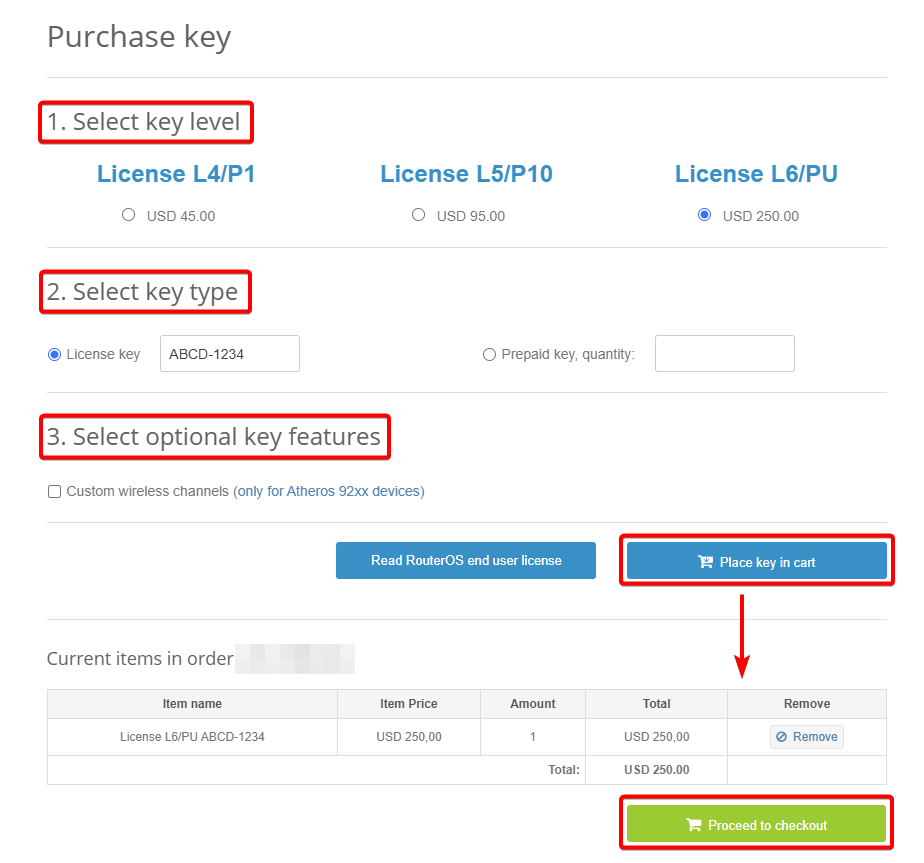
Review and Complete Your Purchase
Review your order details carefully, then proceed with payment using either a Credit Card (CC) or PayPal.
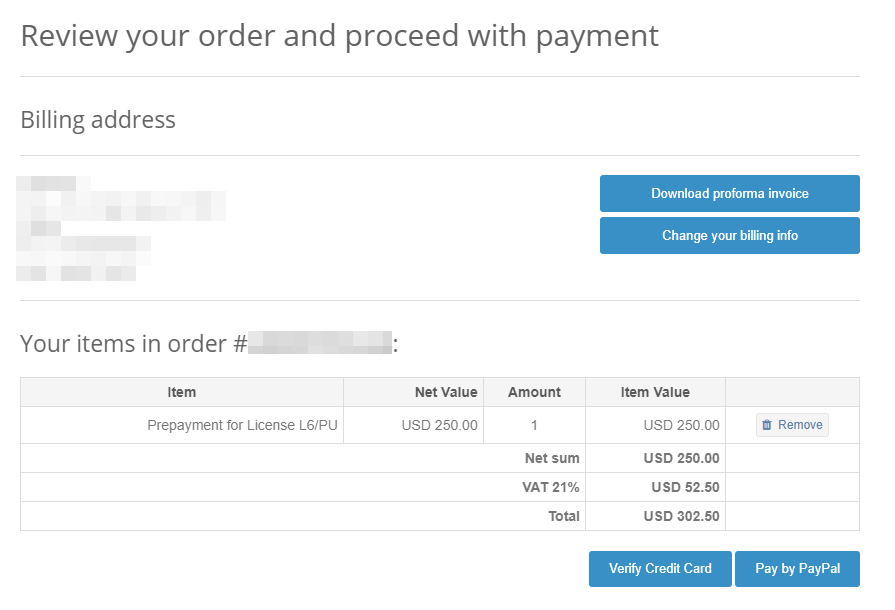
Congratulations! You have successfully purchased a RouterOS license key.
How to Convert a Prepaid Key to a License Key for x86
-
Purchase a RouterOS Prepaid Key.
- Log in to your mikrotik.com account.
- Purchase a RouterOS Prepaid Key if you have not done so already.
-
Access the "Make a Key from Prepaid Key" Section.
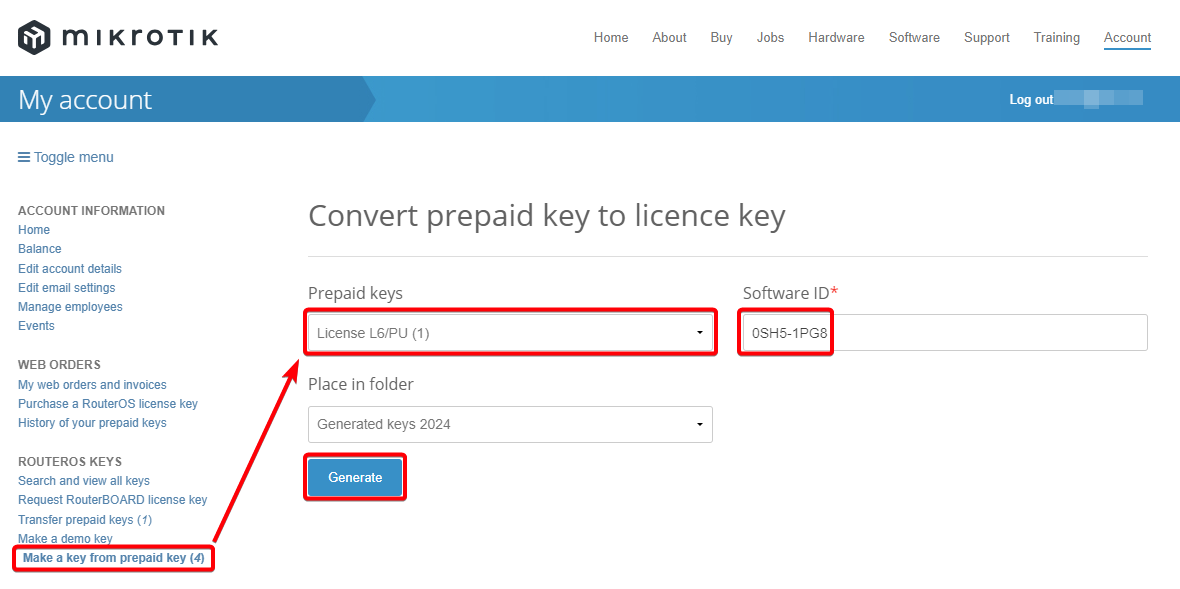
- Navigate to the "Make a key from prepaid key" section in your account.
-
Select and Convert the Prepaid Key.
- Select the desired Prepaid Key from the list.
- Enter the Software ID of the x86 device you want to license, or the Software ID of the router for which you want to upgrade the license level.
-
Generate the License Key.
- Press "Generate".
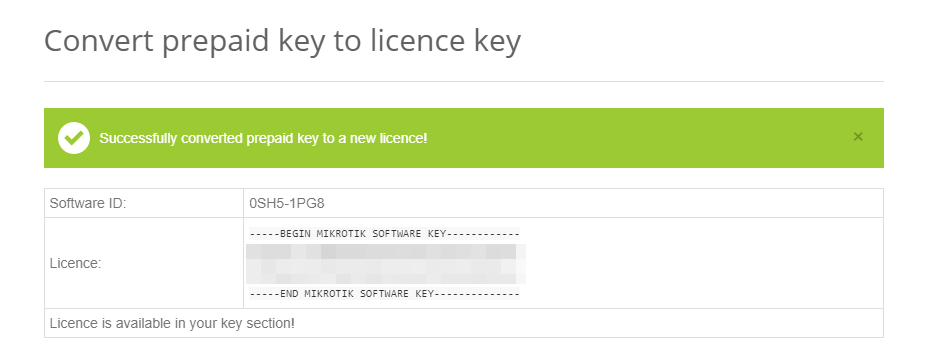
- A confirmation message will appear: "Successfully converted prepaid key to a new licence!".
-
Apply the License Key.
- Copy the generated license key.
- Paste it into the x86 device to apply the license.
You have successfully converted a Prepaid Key to a license key for your x86 device.
Replacement Key
A Replacement Key is a special license key issued by the MikroTik support team in the event of an x86 storage device failure or if an x86 instance running RouterOS has lost its license. It is available for $10 and can be issued once per original key.
Before a Replacement Key is issued, MikroTik Support may require proof that the original drive has failed. In some cases, this includes physically sending the failed drive to MikroTik.
Replacement Key Request
-
Log in and Submit a Request
- Log in to your account on mikrotik.com.
- Submit a request using the "Support Contact Form" or by sending an e-mail directly to support@mikrotik.com.
- Include the following information in your request:
- A clear explanation of why a replacement key is needed.
- The Old Software ID and the account under which it was registered.
-
Wait for Confirmation and Apply the Key
- Once the MikroTik support team confirms that the replacement key has been added to your account, log in and navigate to the "Make a key from replacement key" section.
- Proceed with the activation.

-
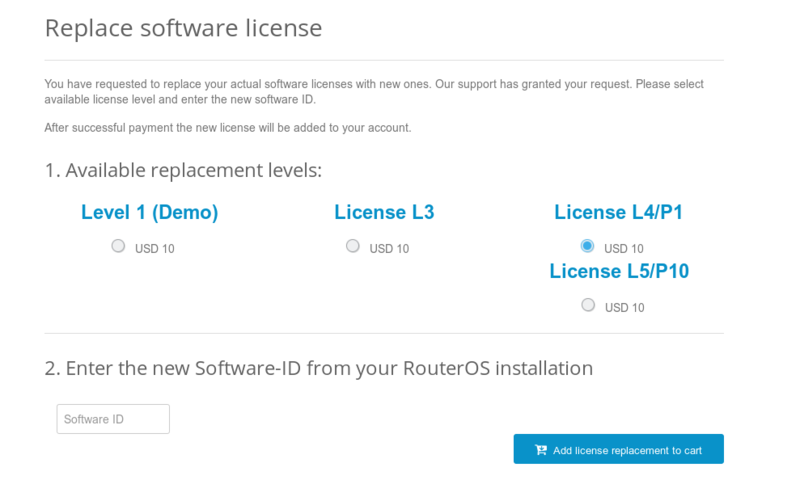
Select the License Level
- Select the license level at which you wish to apply the replacement.
-
Enter the New Software ID
- Enter the new Software ID of the target device.
-
Complete the Purchase
- Click "Add license replacement to cart" to proceed to checkout and complete the payment.
- Retrieve Your Key
- A confirmation e-mail containing the new license key will be sent to your account's registered e-mail address.
- The newly generated key can also be found in the "Search and view all keys" section, under the folder "Purchased YYYY", where "YYYY" represents the current year.
Only one replacement key can be issued per original key. It is not possible to use the replacement key procedure twice for the same key. If a second replacement is required, a new key for the RouterOS device must be purchased.
Obtaining and Managing Licenses
Where can I buy a RouterOS license key?
To purchase a license for an x86 PC installation, you will need to register an account on our website and use the Purchase a RouterOS license key option available within the account portal.
Can I Upgrade the x86 License Level?
To upgrade the x86 license level, you must purchase the desired license key at full price.
If You Purchased Your Key Elsewhere
If your license was purchased through a third-party vendor, please contact that vendor directly for support, as they are responsible for assisting with licenses they have sold.
If I Have a License and Want to Move It to Another Account
The only type of license that can be transferred to another account is a prepaid key. Prepaid keys received as gifts from Training are not transferable. To transfer a purchased prepaid key, navigate to Transfer prepaid keys under the ROUTEROS KEYS section in your MikroTik Account.
If You Have Lost a License on Your Device
If you have lost the license from your router for any reason, upgrade the router to the latest available RouterOS version and use the "Request license key" option in your mikrotik.com account. When submitting the request, use the Software ID and serial number found under the /system/license menu in RouterOS. Once received, apply the license key to your device. If the request feature does not work, contact support@mikrotik.com for assistance.
If the license was lost due to repairs that were not performed by a distributor under warranty, you will be required to purchase a new RouterOS license at full price.
Using the License
Can I Format or Re-Flash the Drive?
Formatting or re-imaging the storage device using non-MikroTik tools (such as dd or fdisk) will destroy your license.
Exercise extreme caution and contact MikroTik support before attempting this. Such actions are not recommended, and replacement license requests may be denied.
To reinstall RouterOS safely, use official MikroTik tools such as Netinstall or install from a disk image by creating bootable installation media (e.g., USB flash drive).
How many computers can I use the License on?
A RouterOS license can only be used on a single device/system.
On x86 systems, the license is tied to the Software ID, which is bound to the storage device (MBR). This allows you to move the same storage device to another computer without losing the license. However, the license cannot be transferred to a different storage device.
Formatting or overwriting the storage device will permanently erase the license, requiring a new one.
Important: When moving or modifying storage, perform all actions carefully. Changes such as using different storage controllers or adapters, or modifying BIOS/UEFI settings, may alter the Software ID and result in license loss.
For best practices, generate and save supout.rif files before and after any hardware changes. If the Software ID changes, these files can be provided to MikroTik support for review.
If the Software ID has changed, you may request a replacement key.
Can I temporarily use the storage device for something else, other than RouterOS?
As stated above, no.
Can I move the license to another storage device (e.g., SSD, HDD, NVMe)?
If your current storage device is damaged or cannot be used, the license can be transferred to a new device by requesting a replacement key.
A replacement key is available for a fee of $10.
Must I type the whole key into the router?
No, simply copy the key and paste it into System → License → Paste Key, then confirm the reboot.
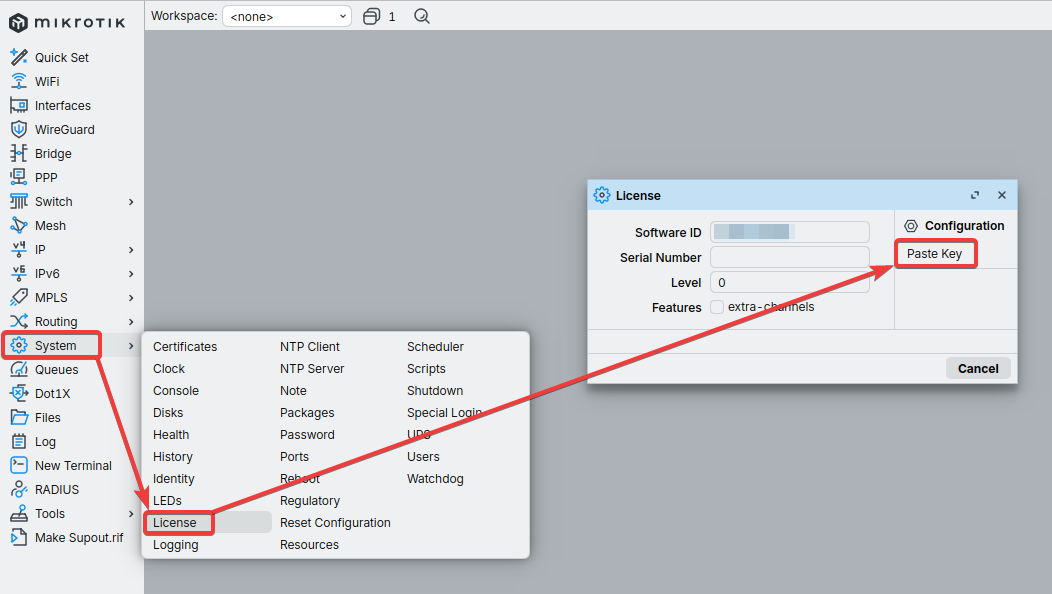
Alternatively, paste the key directly into the CLI and press Y to reboot.
Can I install another OS on my drive and then reinstall RouterOS later?
No. If you use formatting, partitioning utilities, or any other tools that modify the MBR, you will lose your license and will need to obtain a new one. This process is not free (see Replacement Key above).
I Lost My RouterBOARD - Can I Transfer the License to Another System?
MikroTik hardware includes an embedded license that is permanently tied to the device. This license cannot be transferred to another system under any circumstances. This restriction also applies to any license upgrades that were applied to the router while it was operational.
Licenses Purchased from Resellers
The keys that you purchase from other vendors and resellers are not in your account. Your mikrotik.com account only contains licenses purchased from MikroTik directly.
I am not using the software, can you terminate my license?
Licenses are stand-alone keys, and MikroTik does not have remote control over your devices. As a result, it is not possible to verify whether a license is actively being used. For this reason, MikroTik is unable to terminate any issued licenses.
Is it possible to upgrade or transfer an x86 license to a CHR license?
Upgrading or transferring an x86 or a RouterBOARD license to a CHR license or vice versa is not possible. A separate license must be purchased for CHR.
x86 Installation
Covers RouterOS x86 system requirements and installation methods, including USB and Netinstall deployment.